Welcome to the Tryon Patient Portal Login powered by AthenaHealth. The patient portal is designed to provide you with a seamless and secure way to manage your health records online.
You have your health information at your fingertips. This lets you actively join in your healthcare journey. You can be confident that your data is safeguarded with stringent security measures. Thank you for choosing Tryon as your trusted healthcare partner.
Security Measures to Protect Patient Accounts
At Tryon, we understand that protecting your personal health information is a top priority. Our patient portal is built with multiple layers of security. These layers guarantee your data remains private and confidential. It is accessible only to you and your authorized care team.
Below are the key security measures in place to safeguard your account and information.
Multi-Factor Authentication (MFA): For added protection, we offer optional MFA. It requires a second form of verification, like a code sent to your mobile device or email. This occurs when logging in from a new or unrecognized device.
Automatic Logout: The portal logs you out after a period of inactivity. This prevents unauthorized access if you step away from your device.
End-to-End Encryption: All data transmitted between your device and our servers is encrypted using industry-standard TLS (Transport Layer Security) protocols. This ensures that any information you send or receive—including messages, lab results, and health records—is secure during transmission.
Tryon Patient Portal Login
The Tryon team is working to make it as easy as possible for patients to access the portal. Follow the steps outlined below to log in and manage your patient portal account online or through the athenaPatient app.
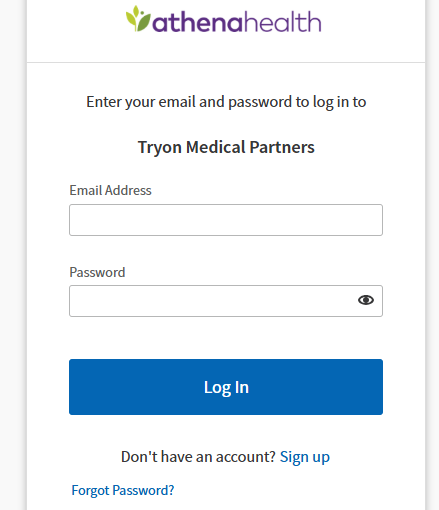
- Open tryonmed.com/portal in your browser.
- Scroll down and click the link labeled “Continue to the Athenahealth Patient Portal.”
- On the Tryon Patient Portal, enter your email address and password.
- Click on Log In to access your dashboard.
If you’re a new or existing patient with questions, the Tryon Patient Connect team will help you sign up. They will also assist you in accessing the portal.
How to Reset Your Tryon Patient Portal Account Password
If you have already created an account but are unable to log in due to a forgotten password, follow these steps to reset it and regain access to your portal:
- Go to the patient portal welcome page
- Click on the ‘Forgot your password?’ link below the ‘Log in with athenahealth’ button
- Follow the instructions displayed on the screen to reset your password
- If you still experience issues, contact your healthcare provider’s office to request a password reset email
If you can’t access the Tryon Patient Portal Login directly from your computer, download the appropriate athenaPatient app. Get it for your mobile device on Google Play or the App Store.
Security Tips for Tryon Patient Portal Access
- Use a strong, unique password and change it periodically.
- Never share your login credentials with others.
- Always log out after finishing your session, especially on shared or public devices.
- Ensure your device has updated antivirus and security software